Work Orders: Approvals and Status Lifecycle
Last updated: November 11, 2026
If you are an approver in the work order system, you'll receive emails alerting you to jobs submitted for approval. This article covers how to approve or deny a work order, what each status means, and why a work order might not launch.
Note: To approve work orders, you must have an email set up in your L2L user account and be set as an approver in the work order settings.
How to approve or deny a work order
Open the email and locate the link. It takes you to the L2L login page, or, if you're already logged in, opens a new window directly on the Review Work Order page.
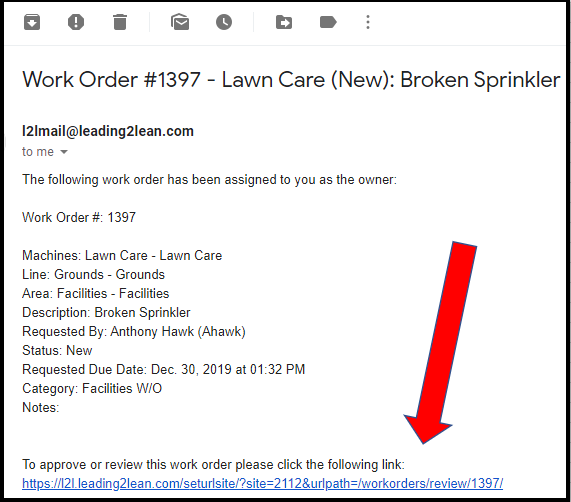
On the Review page, review the information for the requested work and decide whether to Approve or Deny.

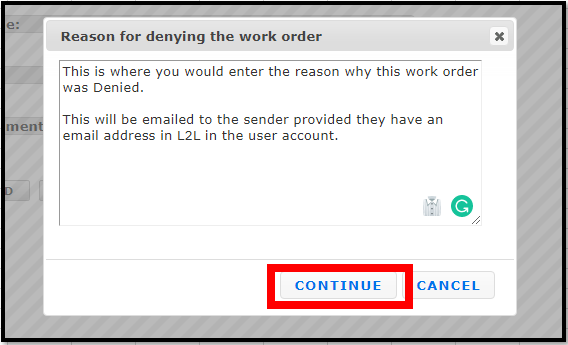
If you deny the work order, a pop-up asks for the reason. This reason is sent back to the requester (provided they have an email address in L2L).
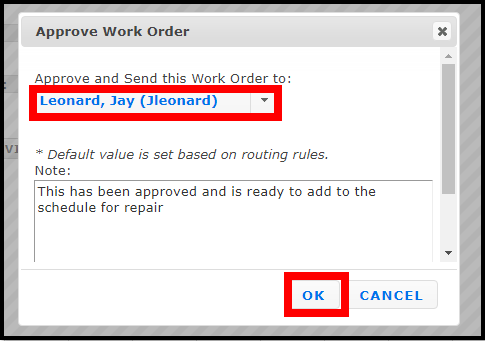
If you approve the work order, a pop-up lets you send a note to the new owner of the work order. Example: you approve the work and send it to Jay, the group planner.
Work order statuses
From the main work order screen, click a work order to see its details, including its status.
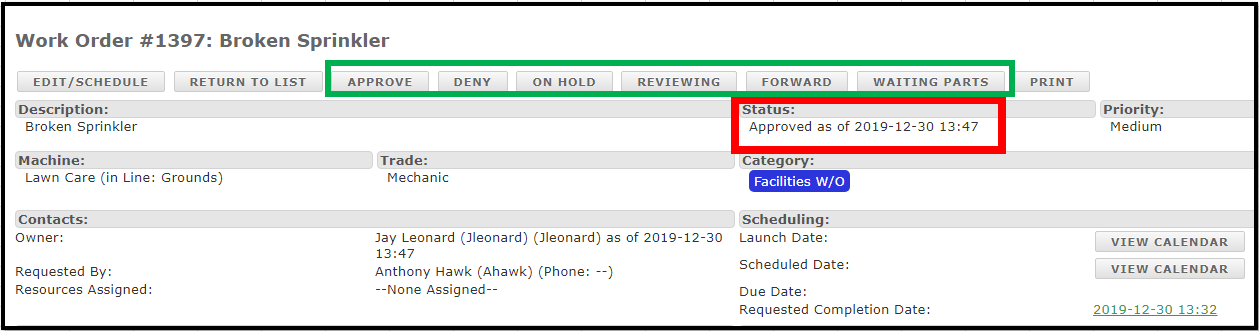
A work order's status can be changed to:
Approve: Ready to schedule work and assign resource(s).
Deny: Work is not approved.
On-Hold: The job is waiting on some action.
Waiting for Parts: Parts are on order for the job.
Reviewing: The job is being reviewed and more time is needed.
Forward: The job has been forwarded to another person for approval.
Troubleshooting: work order not launching
The work order status affects whether it launches into a dispatch:
Work orders in a New status that have not been approved will not launch.
Work orders in Reviewing or On Hold status will not launch.
Approved work orders that are set back to a new status, such as Ready to Schedule, may also be prevented from launching.
Pro tip: Once a work order is approved, set its status to Scheduled.