Work Orders: Creating a Work Order
Last updated: November 11, 2026
Work orders are an important part of your plant's success. They can be used for improvement projects, work requests for facilities actions, and planned project-based production.
L2L makes it easy for anyone with a login account to request work. Work orders are used to request work that requires approval and scheduling before it can be completed.
How to create a work order
Find the Green button at the top of the page and hover over it to select the Work Order option.

Select the Area (1) and Line/Location (2) where the work will be completed.
If you're unsure of the area, select Unsure at the far right of the screen.

Note: If you don't select an Area and Line, and the Category doesn't require a Machine, you will receive a Machine required error. This is because the Line has a Default Machine, which is used for Categories that do not require a Machine selection.
Once you've selected the location, the entry screen appears so you can enter your information. Required fields are shown in red.
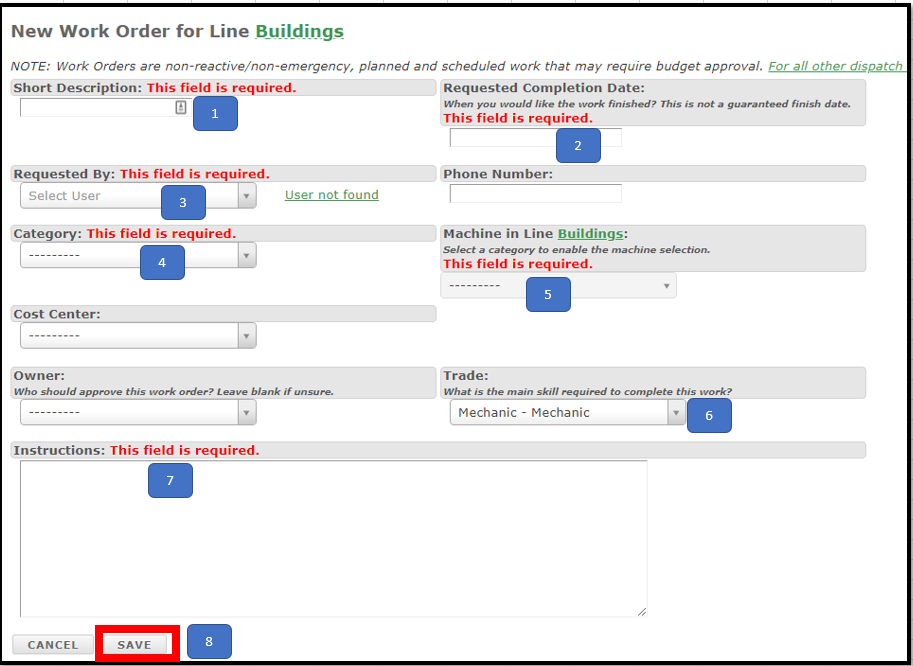
Required fields
Short Description: Title for the work needing to be completed.
Requested Completion Date: When you want the work completed by.
Requested By: Who filled out the work request (account login).
Category: The type of work needed.
Machine in line: The machine or location where the work is needed.
Trade: The group that needs to complete the work, if known (for example, a mechanic).
Instructions: Describe the work you want completed.
Save: Sends the work to the owner for approval and scheduling.
Optional fields
Cost Center: Add a cost center to the request.
Phone Number: Lets the person completing the work contact the requester if needed.
Owner: Bypasses the routing rules and sends the work order to the selected person for approval.
Save and Add Attachments: Add attachments such as drawings or photos to help illustrate the work.