Bulk Importing Product Orders (Admin Guide)
Last updated: November 12, 2026
If you are an Admin in the Production module and use the eKanban Planner, you can import product orders yourself from a spreadsheet.
Step 1: Choose a file
Click the Production Imports button. You'll be given two options:
Import a New File: The option you'll use in most cases. Click Add Attachment to upload.
Select an Existing File to Import: Not as common, but there is an option to import a file you uploaded before and search those.
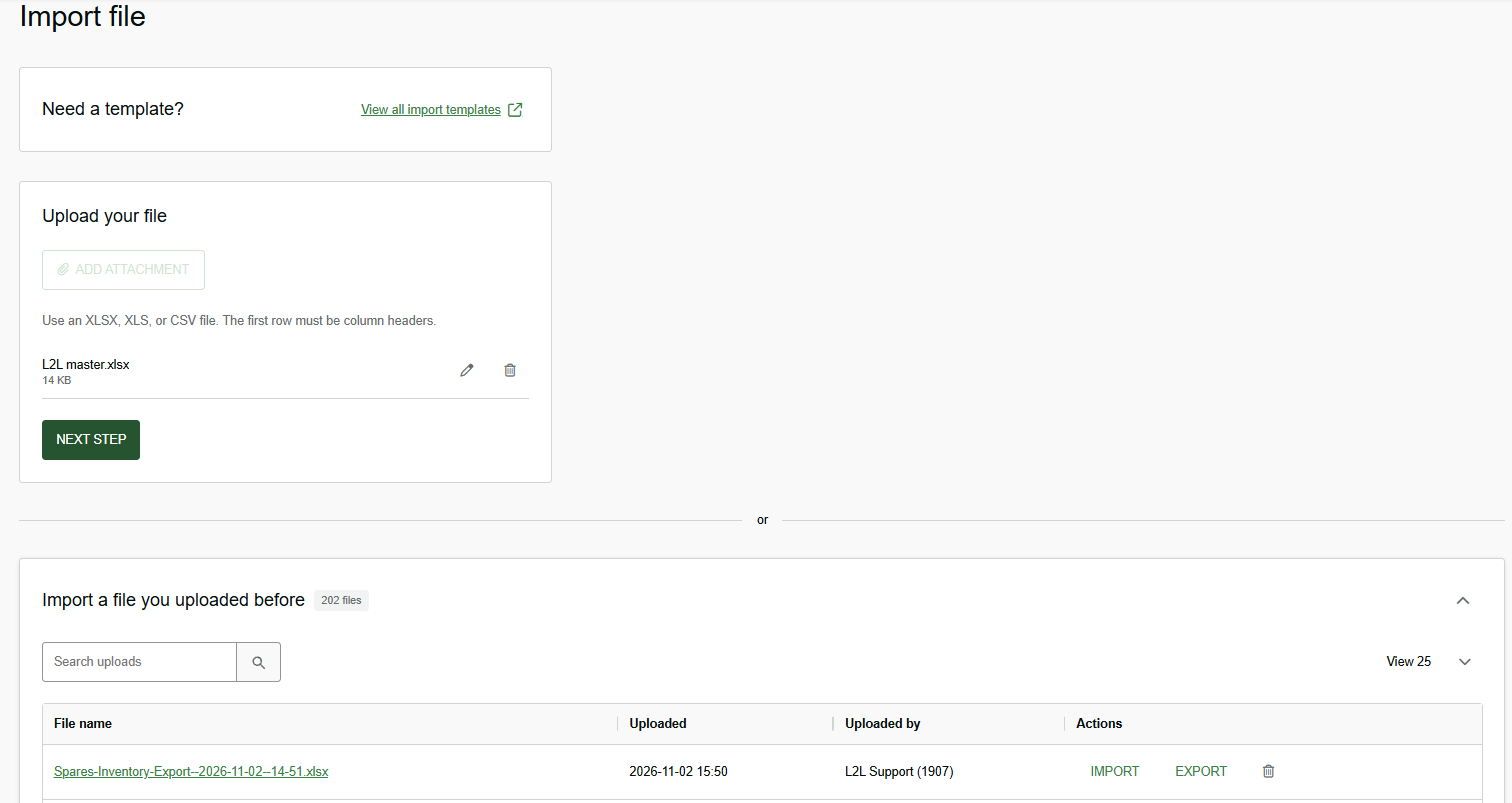
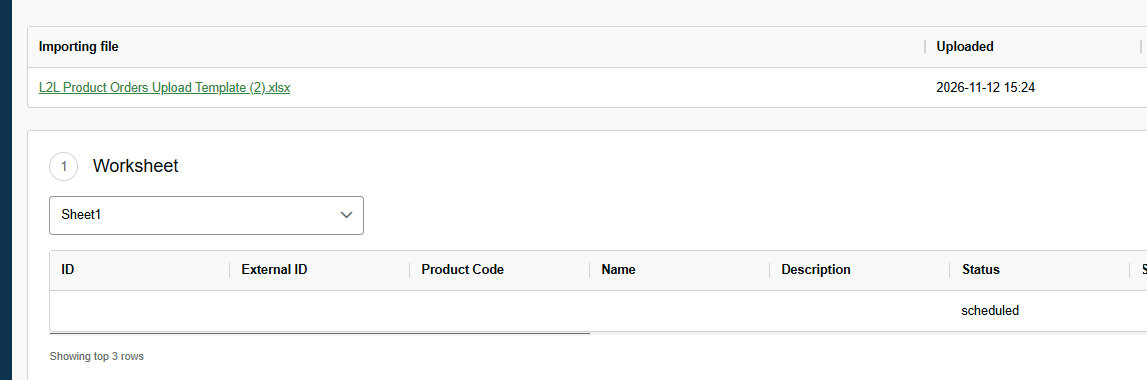
After selecting your file, click Next Step. The next screen shows the file you're importing and its top three rows, for reference while you fill out the Table Mapping Fields.
Step 2: Select Worksheet
Make sure you have the correct Worksheet if there are multiple included in your file.
Step 3: Choose Import Type
Be sure you select the correct import type for the mapping fields to populate.

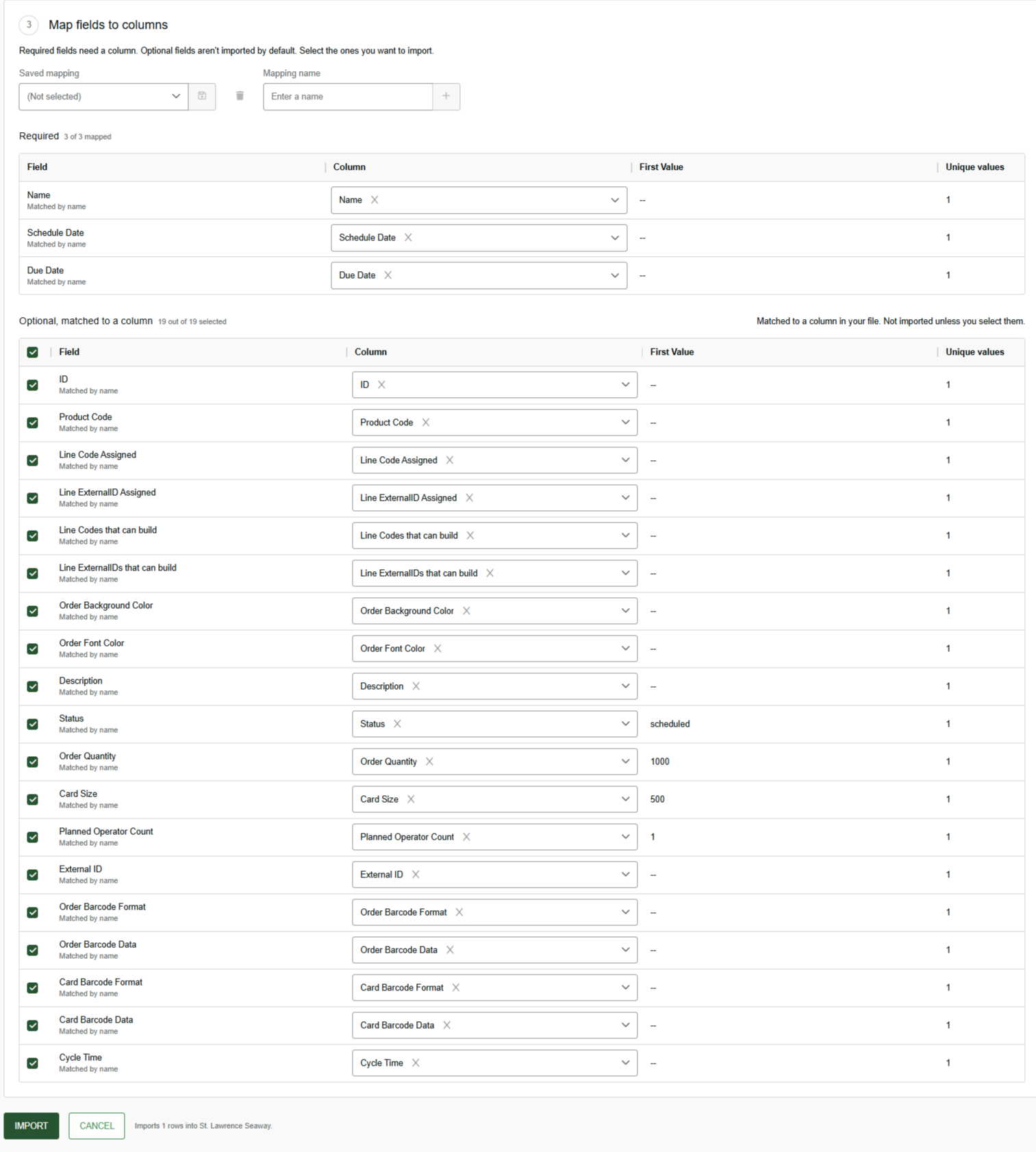
Step 4. Map Your Fields
Map your fields to match your spreadsheet. Each Table Mapping Name should match the name in the Column drop-down.
If your spreadsheet has a column that doesn't need to be imported, do not select the box.
Once all fields are mapped, click the Import button.
Note: If you import product orders without defining a status on the spreadsheet, they are created with the New status (API value 0).
Troubleshooting import errors
If you receive errors after importing and can't tell what they mean:
Review your table mapping fields and required fields, make any edits, and try again.
If you're still stuck, email L2L Support.