Administrators Can Remove or Delete Unnecessary Checklists
Last updated: October 14, 2026
Have a duplicate or obsolete dispatch that needs to be closed out and the checklist does not need to be completed for this? This is very much possible as an administrator for your site.
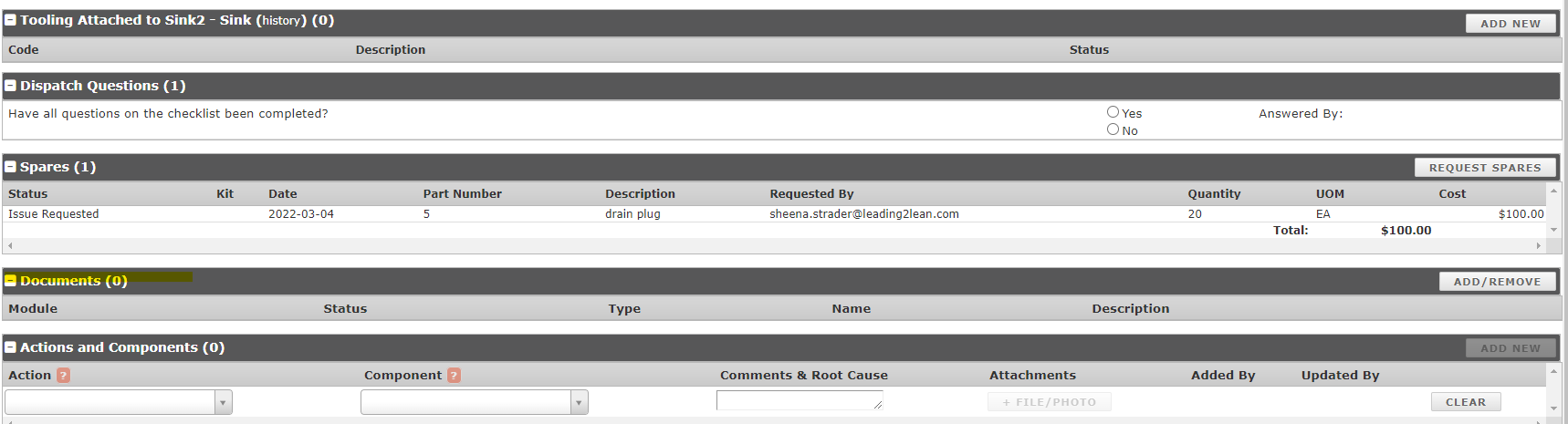
When you open the dispatch that needs to be closed, look under where the documents are listed and you will see an ADD/REMOVE tab on the right.
Once you click the ADD/REMOVE tab, you will see your checklist or checklists under dispatch documents along with the option to REMOVE on the right. Once you have removed the checklist(s), be sure to click Save & Return above on the right.

Once you have saved and returned back to the dispatch screen, your documents will have been removed, allowing to you complete and close the dispatch.
Deleting open/closed unnecessary checklists:
Admins can now delete open or closed checklists that were created by mistake or duplicated. Deleted checklists and their answers no longer appear in checklist lists, dashboards, or reports, so your reporting stays accurate.
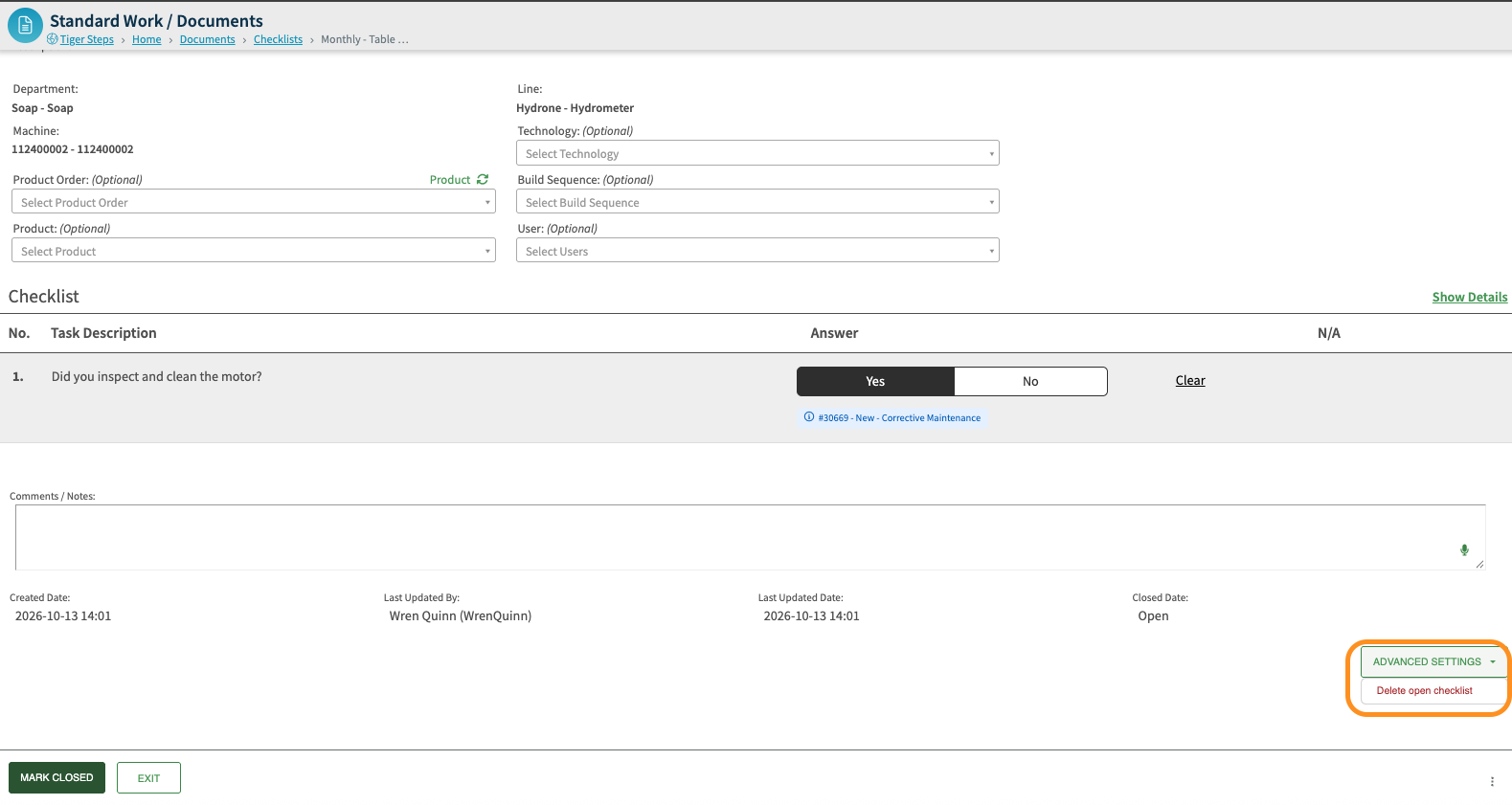
Where to find it: Open the checklist, select Advanced Settings at the bottom right, then select Delete open checklist or Delete closed checklist. Only admins see this option.
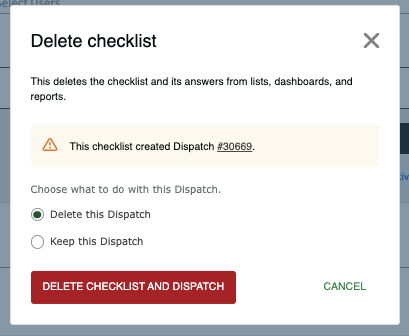
Dispatches: If the checklist created dispatches, you choose whether to keep them or delete them along with the checklist.
Confirmation: A message confirms what was deleted, for example “Checklist and 2 dispatches deleted.”
Note: You can’t undo a deletion. While it is important to be cautious and sure a checklist should be deleted and not closed, L2L Support may be able to help restore a deleted checklist if the specific checklist details are provided.